

How to add assets
Pro
Every business owns stuff that helps it run, from laptops and cameras to ovens, vans, or furniture. These are your assets.
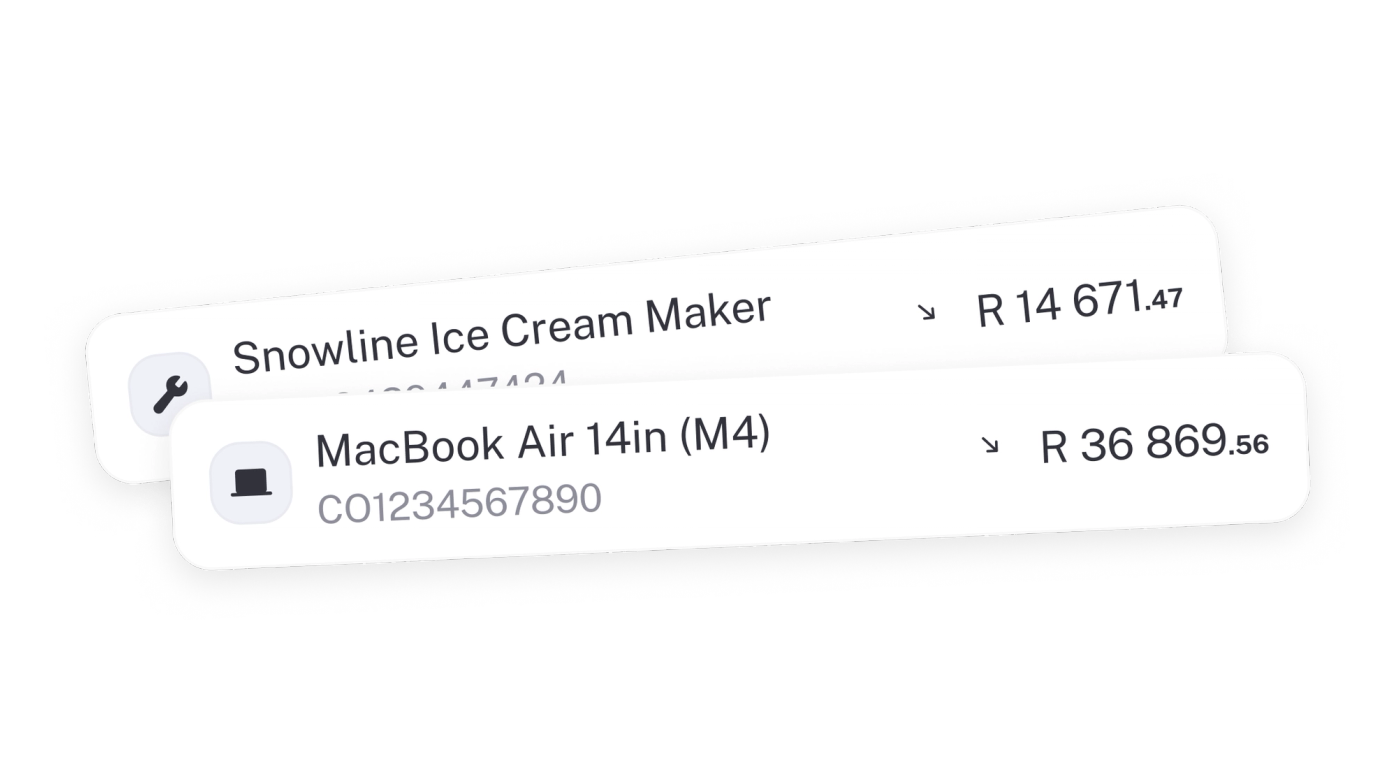
They’re the things your business uses over time to earn money, not items you sell but equipment you keep. In stub Pro, you can record them neatly so your books show what your business actually owns and what it’s worth.
Examples of assets
- A designer’s laptop and second screen
- A baker’s oven and display fridge
- A delivery company’s bakkie
- A coffee shop’s espresso machine and tables
- A rental business’s property or warehouse
- A startup’s solar panels or CCTV system
Why add assets
- They appear on your Balance Sheet so you can see your total business value.
- You can record depreciation so the cost is spread over time instead of hitting one month’s expenses.
- You’ll have a record of when something was bought, how long it’s expected to last, and when it’s been sold or scrapped.
How to add an asset
- Head to Assets → + Asset.
- Choose a category, for example Computers & Devices, Vehicles, or Furniture.
- Add a description such as “MacBook Pro 2023” or “Espresso machine”.
- Add a reference number if you use one for internal tracking.
- Tick Add depreciation if you want stub to calculate it automatically.
- Pick a depreciation method (Straight line or Diminishing value).
- Enter the start date and useful life (how long you expect to use it).
- Set the status as In use or Disposed.
- Add notes or tags if you like, then click Save.
The asset will now appear on your Assets page. Depreciation will start from the date you entered and continue for the useful life you set.
TIP: Mark the asset as Disposed if you’ve sold, scrapped, or written it off so stub stops depreciating it automatically.